


Pairing (Sensor ID synchronization)
Pair a sensor that you want to use with smart computer.
Important
• Pairing (sensor ID synchronization) must be performed in order to use a sensor.
• Do not pair sensors at a race venue or in similar locations where there are many other users. Doing so may cause smart computer to be paired with another sensor.
• Pair all sensors that you intend to use.
• During pairing or when connected to a smartphone, if sensor information is stored in Cateye Cycling™, this information is written to the smart computer.
 Smartphone : Pairing with a sensor
1. From the measurement screen, press MENU to switch to the menu screen.
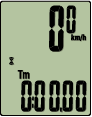
Measurement screen


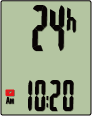
Menu screen (Clock setting)
* When the menu screen is left on for 1 minute, Smart computer returns to the measurement screen.
2. Press MODE to display the screen shown below, and then press MODE for 2 seconds.
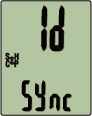

(2 seconds)
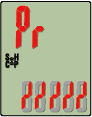
Ready for synchronization

Sensor activated
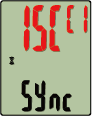
Synchronization complete
The synchronized sensor is displayed on the top of the screen and pairing is completed.
• SP : Speed sensor
• ISC : Speed/cadence sensor
• CD : Cadence sensor
• HR : Heart rate sensor
• PW : Power sensor
* When pairing a sensor with a smart computer, a "C" is displayed after the sensor name.
Important
When smart computer displays [FULL] on the screen and returns to the menu:
Up to 9 separate sensor IDs can be paired with smart computer. If the maximum number of sensors have been paired, with the computer in pairing standby state, press MENU for 4 seconds to clear all pairings.
* Pairing standby time is 5 minutes. Activate the sensor within this time.
4. Press MENU to confirm pairing.
If you want to continue pairing another sensor, repeat the same operations again.
Pressing MENU again returns to the measurement screen.
* If you have changed settings, always press MENU to confirm changes.
Copyright © 2021 CATEYE Co., Ltd.