


4. Pairing a smart computer with a smartphone
The following section explains how to format (initialize) the smart computer and then pair with a smartphone.
Important
• Pairing is necessary to use a smart computer or a sensor.
• Do not pair sensors at a race venue or in similar locations where there are a lot of other users.
Doing so may cause the smart computer to be paired with another device.
Smart computer
1. Remove the battery insulation sheet from the smart computer.
After removing the battery insulation sheet, return the battery holder and battery cover to their previous locations.
 OpenCloseInsulation sheetBattery holder
2. Press the AC button on the smart computer.
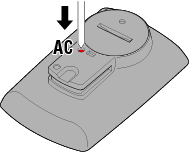
The initialization screen is displayed.
3. Press MODE once to cause [FORMAT] to blink, and then press MODE for 1 second.
Caution
All data will be deleted and smart computer will be reset to factory default settings.
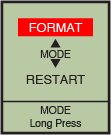


Confirm
(1 second)
The display switches to the smartphone search screen.
Smartphone
4. Tap [Start] to begin pairing.
* If the startup screen does not appear, tap  (Startup) at the top left corner of the screen to display it.

When Cateye Cycling™ detects smart computer, a message is displayed on the smartphone.

Tap [Pairing] to complete pairing.
* Tap [PADRONE SMART+] to display the settings configuration screen for the various smart computer settings.
 Device
Smart computer pairing is now complete.
If you have sensors or a DI2 system, proceed to "Pairing a sensor or a Shimano DI2 system with the Cateye Cycling™ app". If you do not have sensors, skip to "Mounting the bracket".

Copyright © 2021 CATEYE Co., Ltd.